Ignition
The INDAQ JDBC driver lets an Ignition gateway query your INDAQ data the same way it queries any SQL database. Once it is set up you can use INDAQ in Named Queries, query bindings, scripts and reports.
The driver is read-only. It connects to INDAQ over HTTPS, so the gateway never needs a direct connection to your equipment or your INDAQ Interface.
Before you begin
You will need:
- An Ignition 8.1 or 8.3 gateway, and a user that is allowed to change its configuration. The screenshots in this guide are from Ignition 8.3, and the differences for 8.1 are called out where they matter.
- An INDAQ user with the Manager role or above in your organization, to create the API key the gateway will sign in with.
- Outbound HTTPS (port 443) access from the gateway to
api.indaq.cloud.
Download the driver
The driver is a single .jar file of about 76 KB. It has no other dependencies, so there is nothing else to install alongside it.
If you would like to verify the download, the SHA-256 checksum of indaq-jdbc-0.1.0-SNAPSHOT.jar is:
485ce0cbb80f56bbb9894ba690977b39dfe82b18a38a048988174d7931a91e8f
Create an API key
The gateway signs in to INDAQ with an API key rather than with your own account. A key is limited to one organization, can be limited further to a single project, and can be revoked at any time without affecting anyone's login.
- Sign in to INDAQ and open your organization's Settings.
- Select API Keys, then Create API Key.
- Give the key a Name that says where it will be used, such as
Ignition — Press Line 1. - Choose the Project the gateway should read from. Leaving this empty allows the key to read every project in the organization.
- Choose when the key Expires, then select Create.
INDAQ then shows the key's Username, which begins with indaq_sk_, and its Password. Keep this window open, or copy both values somewhere safe, until you have finished setting up the connection.
The password is only shown once. INDAQ does not store it, so it cannot be looked up later. If it is lost, revoke the key and create a new one.
Add the driver to Ignition
This step tells Ignition about the INDAQ driver. It only needs to be done once per gateway.
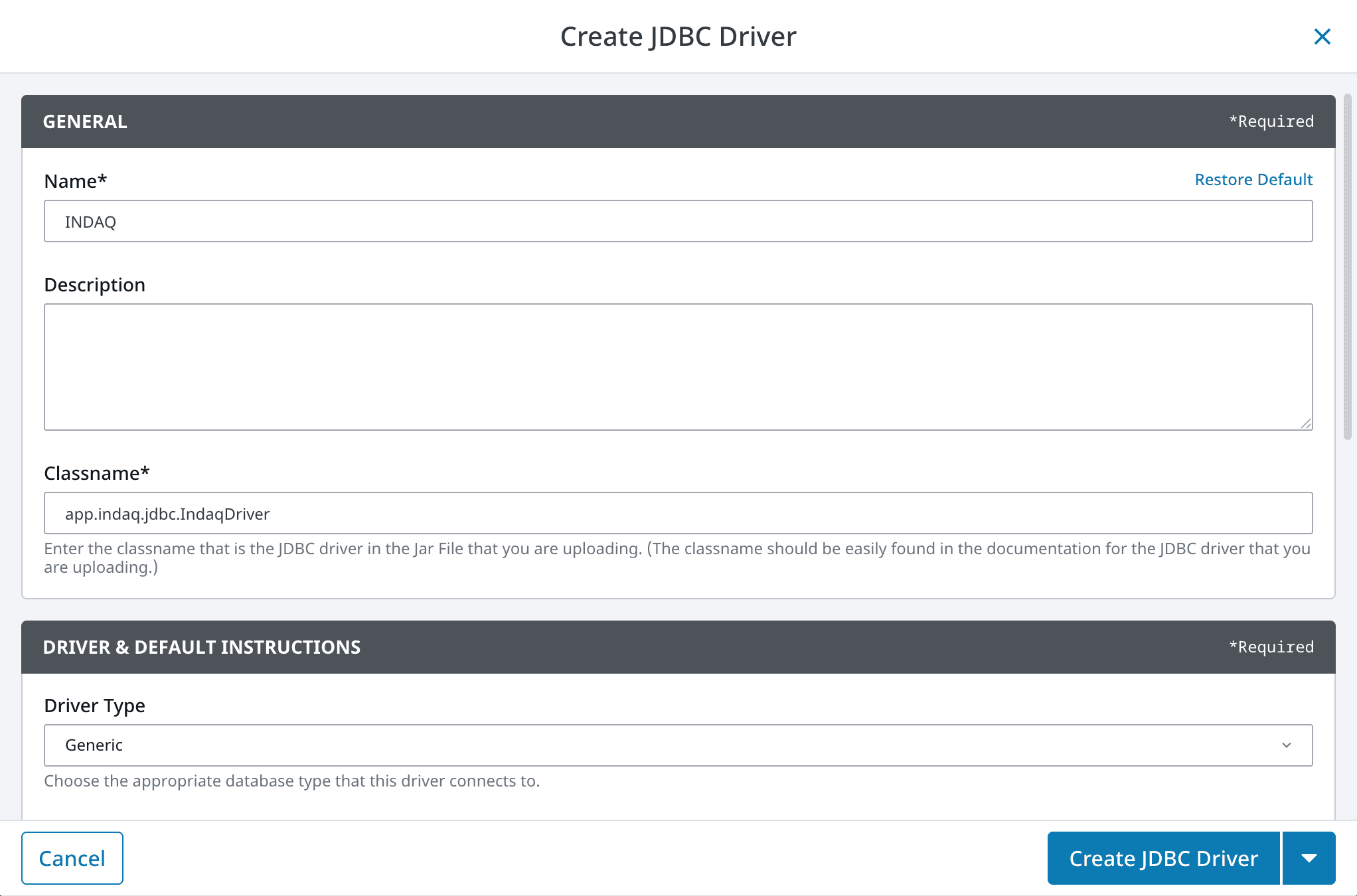
Create the driver
- In the gateway, go to Connections, then Databases, then Settings, and make sure the Drivers tab is selected.
- Select Create JDBC Driver.
- Under General, fill in:
| Field | Value |
|---|---|
| Name | INDAQ |
| Classname | app.indaq.jdbc.IndaqDriver |
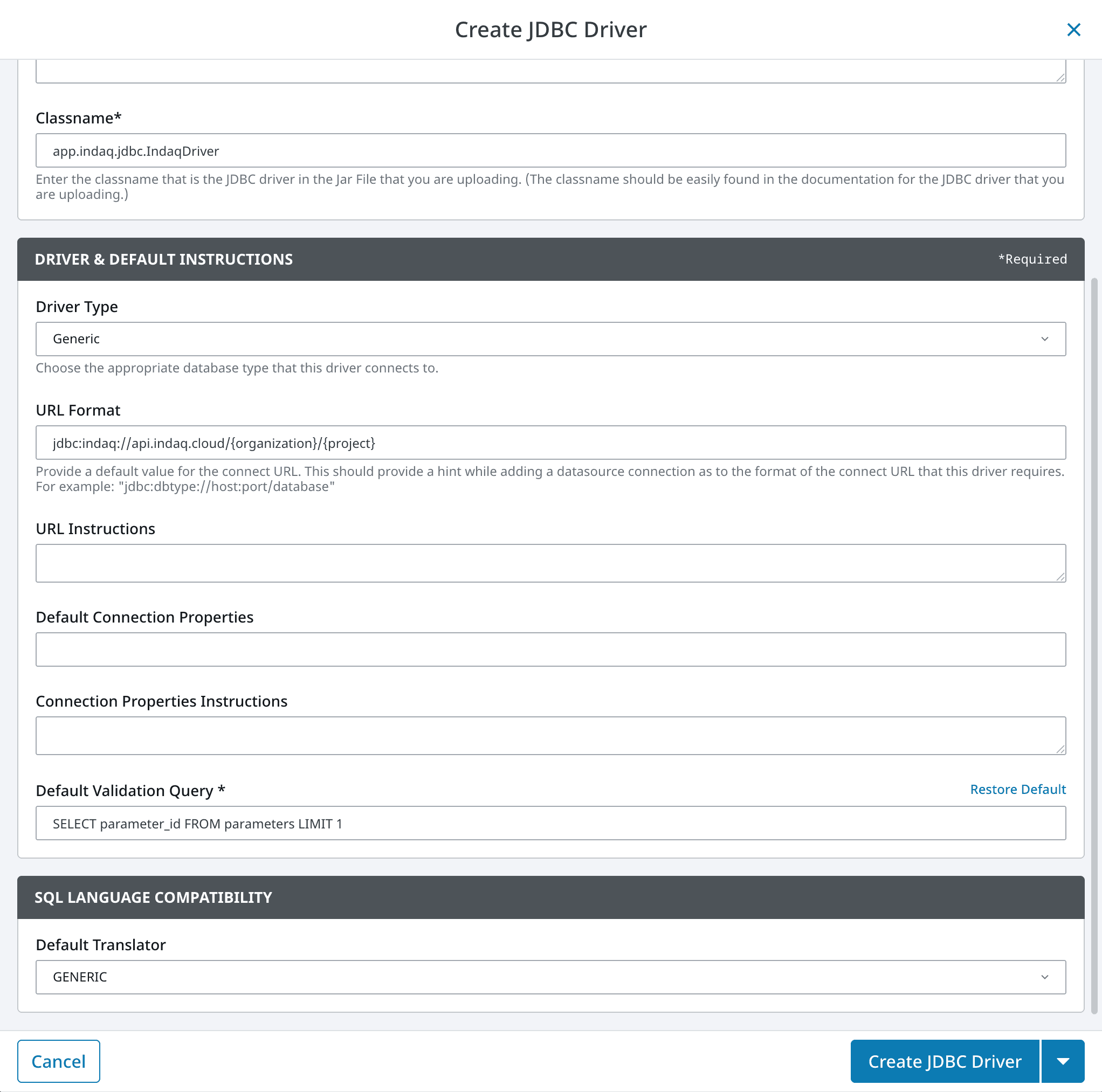
- Scroll down to Driver & Default Instructions and fill in:
| Field | Value |
|---|---|
| Driver Type | Generic |
| URL Format | jdbc:indaq://api.indaq.cloud/{organization}/{project} |
| Default Validation Query | SELECT parameter_id FROM parameters LIMIT 1 |
| Default Translator | GENERIC |
- Select Create JDBC Driver.
Do not skip the Default Validation Query. Ignition checks a connection by running this query, and its usual default of SELECT 1 is not valid in INDAQ, where every query has to read from a table. If it is left unchanged, your connection will show as faulted even though the URL and API key are correct.
Upload the driver file
The driver is not installed until Ignition has the .jar file you downloaded.
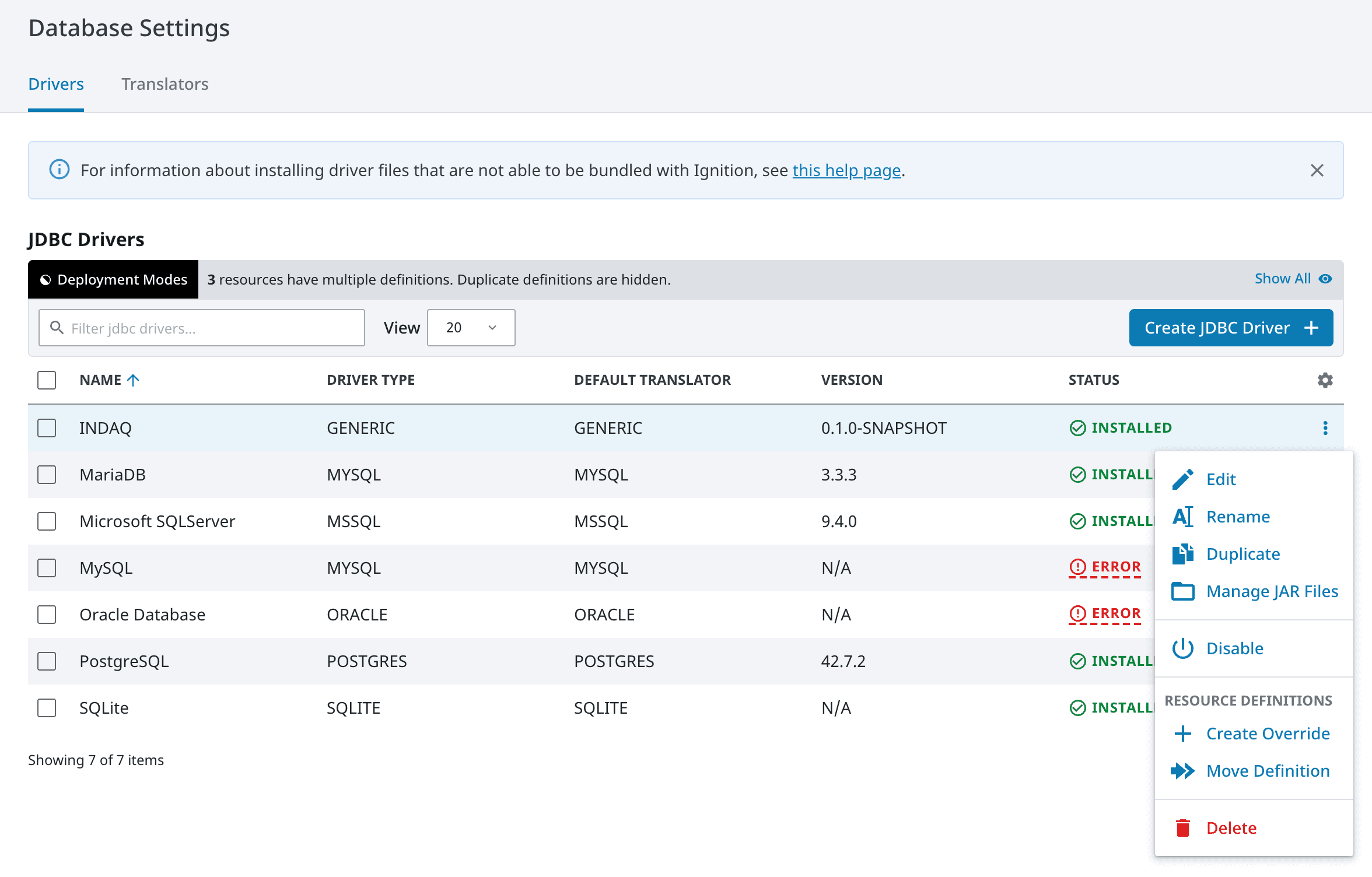
- On the Drivers tab, open the three dots menu at the end of the INDAQ row and select Manage JAR Files.
- Select Choose File(s), pick
indaq-jdbc-0.1.0-SNAPSHOT.jar, and then select Save Changes.
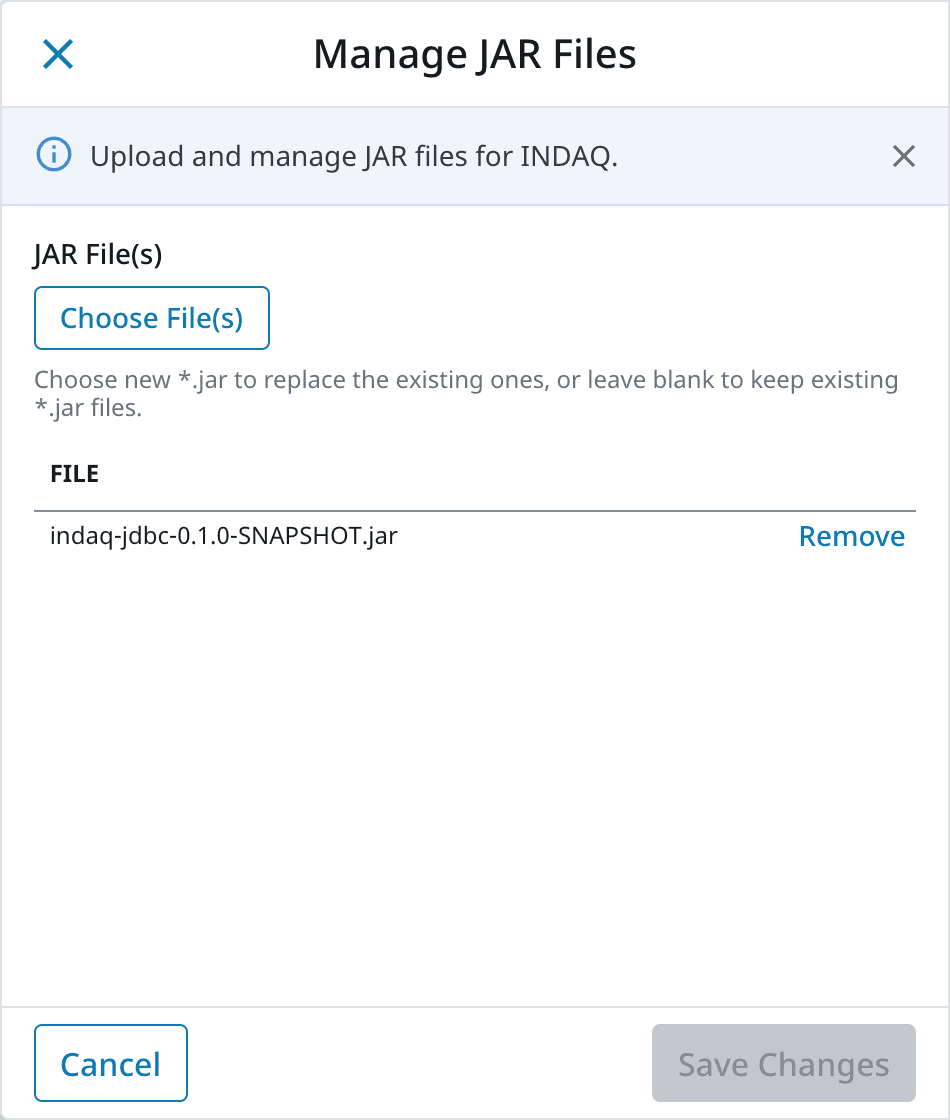
The INDAQ row should now show the driver's version and a status of Installed.
Manage JAR Files was added in Ignition 8.3.2. On 8.3.0 and 8.3.1, choose Edit from the same menu and select the .jar file there instead.
Ignition 8.1
On Ignition 8.1 the driver and its file are added together:
- In the gateway, go to the Config section, then Databases, then Drivers.
- Select Create new JDBC Driver... at the bottom of the page.
- Choose
indaq-jdbc-0.1.0-SNAPSHOT.jarin the JAR File(s) field, and fill in the other fields with the same values as the tables above. - Select Create New JDBC Driver.
Create the database connection
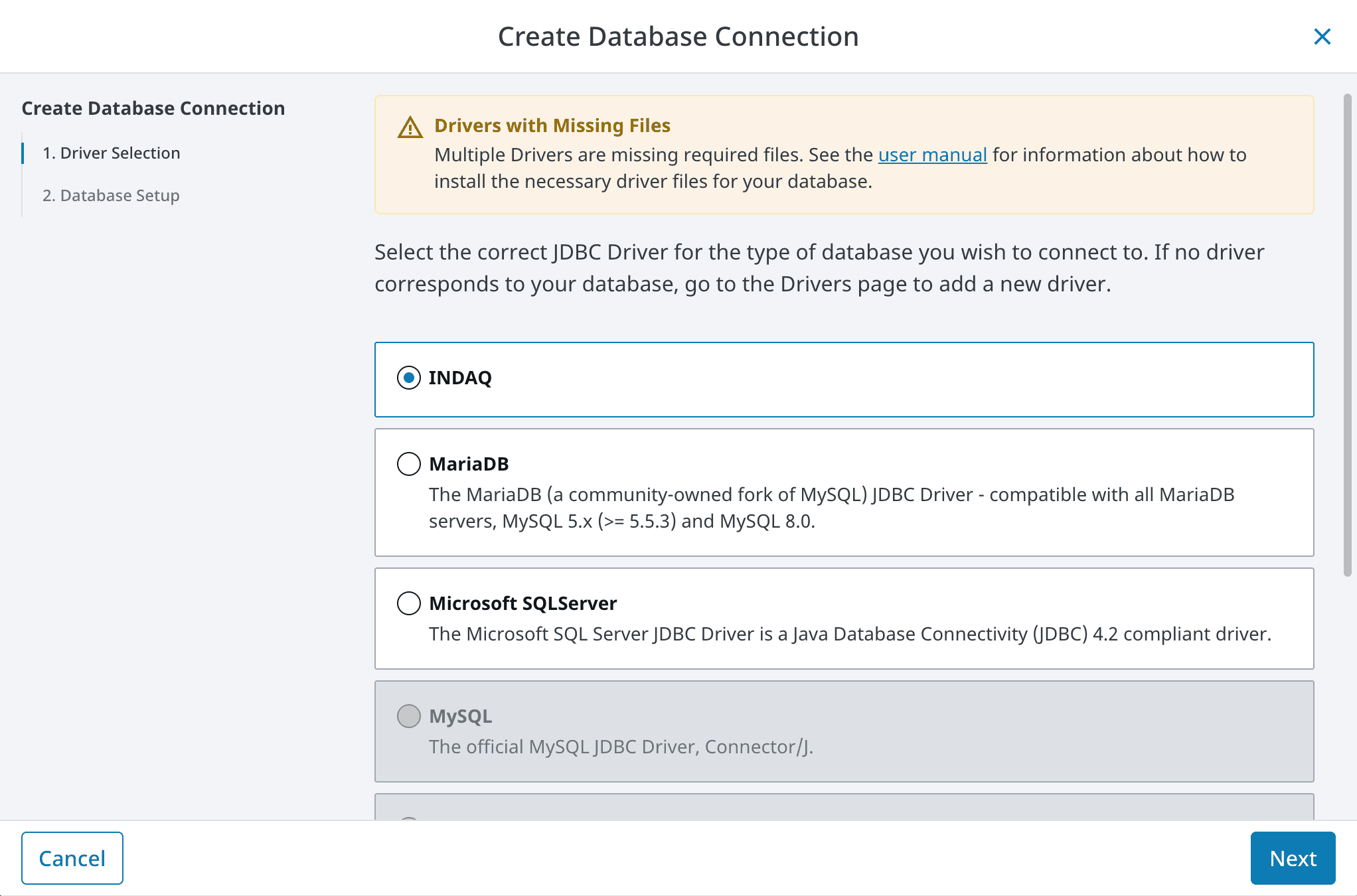
- In the gateway, go to Connections, then Databases, then Connections, and select Create Database Connection.
- Select INDAQ as the driver, then Next.
- Fill in the connection:
| Field | Value |
|---|---|
| Name | A name for the connection, such as INDAQ. This is the name your queries and scripts will refer to. |
| Username | The API key's username, beginning with indaq_sk_. |
| Password | Select Embedded, then paste the API key's password into Secret. |
| Connect URL | jdbc:indaq://api.indaq.cloud/<organization>/<project>, as described below. |
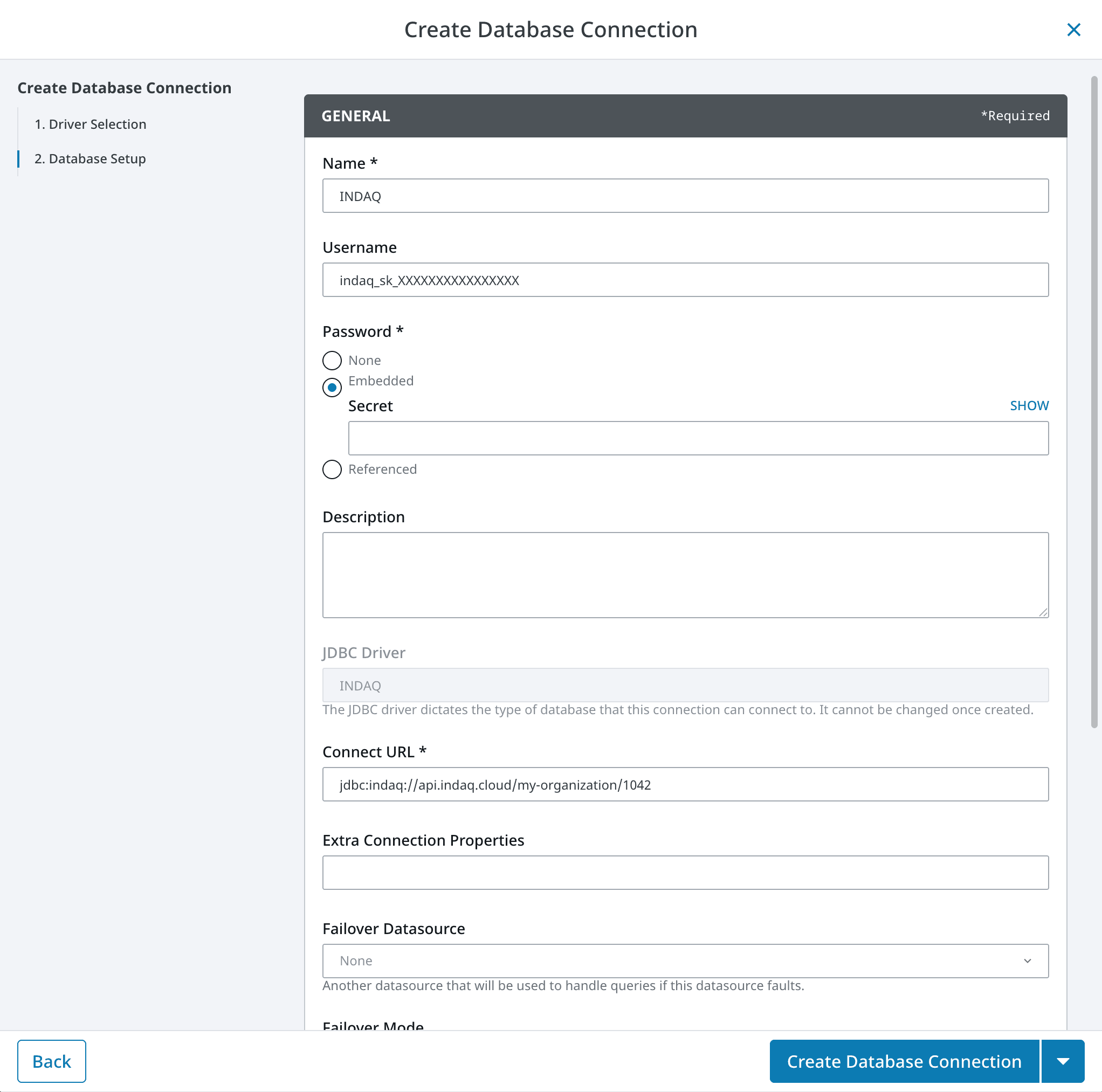
- Select Create Database Connection.
After a few seconds, the new connection should show a status of Valid.

Finding your Connect URL
The Connect URL names the organization and the project that the connection will read from:
jdbc:indaq://api.indaq.cloud/<organization>/<project>
Both values can be read from your browser's address bar while you have the project open in INDAQ:
https://indaq.app/orgs/<organization>/<project>/charts
<organization>is your organization's short name, such asmy-organization.<project>is the project's number, such as1042. The project's name cannot be used here.
If your API key is limited to a single project, the Connect URL has to name that same project.
Connection options
Options can be added to the end of the Connect URL, for example jdbc:indaq://api.indaq.cloud/my-organization/1042?queryTimeout=30&strictNames=true.
| Option | Default | Description |
|---|---|---|
queryTimeout | none | The number of seconds a query may run before it is cancelled. |
maxRows | server limit | The most rows a single query may return. |
strictNames | false | When true, filtering by a parameter name that belongs to more than one parameter is an error, rather than matching all of them. |
align | bucket | How rows in an Interface table are lined up in time. One of exact, bucket or locf, optionally followed by a width in seconds, such as bucket:60. |
locfMaxGap | server limit | With align=locf, the number of seconds a value may be carried forward. |
connectTimeout | 10000 | The number of milliseconds to wait when connecting to INDAQ. |
socketTimeout | 120000 | The number of milliseconds to wait for INDAQ to respond. |
Querying your data
The quickest way to check that everything works is the Database Query Browser in the Ignition Designer. Select your INDAQ connection and run:
SELECT parameter_id, name, interface_name, interval_secs FROM parameters
INDAQ presents your project as three kinds of table.
parameters
One row for each Parameter in the project. Use it to look up the parameter_id of the values you want to query.
data
One row for each reading, exactly as it was recorded.
| Column | Type | Description |
|---|---|---|
parameter_id | BIGINT | The Parameter the reading belongs to. |
parameter_name | VARCHAR | The Parameter's name. |
ts | TIMESTAMP | When the reading was taken, in UTC. |
ts_epoch | BIGINT | The same time, as seconds since 1970. |
value | DOUBLE | The reading, with the Parameter's scaling already applied. |
SELECT ts, value FROM data
 WHERE parameter_id = 1042
   AND ts >= '2026-08-01' AND ts < '2026-08-02'
 ORDER BY ts
To bring a long time range down to a size suitable for a chart, group the readings into buckets. time_bucket takes a width in seconds, and avg, min, max, sum, count, first and last are available.
SELECT time_bucket(ts, 900) AS bucket, parameter_id, avg(value), min(value), max(value)
  FROM data
 WHERE parameter_id IN (1042, 1043)
   AND ts >= '2026-08-01' AND ts < '2026-08-08'
 GROUP BY 1, 2
 ORDER BY 1
Interface tables
Each Interface is also available as its own table, named after the Interface, with a ts column followed by one column per Parameter. This is usually the most convenient shape for a chart or a table component.
SELECT ts, "Motor Temp", "Line Speed"
  FROM "Press Line 1"
 WHERE ts >= '2026-08-01' AND ts < '2026-08-02'
Parameters are recorded independently of one another, so their readings rarely share an exact timestamp. INDAQ lines them up into shared time buckets for you, and a Parameter with no reading in a bucket is returned as NULL. The align connection option controls how this is done.
Using INDAQ in scripts
Named Queries and system.db.runPrepQuery both work, including ? placeholders:
end = system.date.now()
start = system.date.addHours(end, -8)

rows = system.db.runPrepQuery(
    "SELECT ts, value FROM data WHERE parameter_id = ? AND ts >= ? AND ts < ? ORDER BY ts",
    [1042, start, end],
    "INDAQ",
)
Things to keep in mind
- Always give a time range. Include both a start and an end for
tsin every query againstdataor an Interface table. A query without one is limited to a default window and returns a warning. - Parameter names can repeat. INDAQ allows two Parameters to share a name, so
WHERE parameter_name = 'Motor Temp'can return more than one series. Filter byparameter_id, or turn on thestrictNamesoption. - Times are in UTC, to the nearest second.
- Queries are kept simple.
JOIN, subqueries,UNION,DISTINCT,HAVING,OFFSETand filtering onvalueare not supported, and results can only be ordered byts. The error returned by an unsupported query explains what to change. - Limits apply. Each API key may run 600 queries per minute, an organization may run 4 queries at the same time, a query may run for up to 60 seconds, and a result may contain up to one million rows.
The connection is read-only, so use it for queries only. Do not select it for Ignition features that need to create tables or write rows, such as the Tag Historian, alarm journals, audit profiles or Transaction Groups.
Troubleshooting
The connection is faulted with "SELECT requires a FROM clause"
The connection is still using Ignition's default validation query. Edit the connection, select Show Advanced, and set Validation Query to SELECT parameter_id FROM parameters LIMIT 1. Setting the Default Validation Query on the driver, as described above, fixes this for any connection created afterwards.
The connection is faulted with "JDBC URL must name a project"
The Connect URL is missing its last part. It has to contain both the organization and the project number. See Finding your Connect URL.
The connection is faulted and the username or password is rejected
Check that the Username is the complete value beginning with indaq_sk_, and that the key has not expired or been revoked on the API Keys page. A key that is limited to one project will also be rejected by a Connect URL that names a different project. Because the password cannot be looked up again, the quickest fix is often to create a new key.
The connection times out
The gateway cannot reach INDAQ. Confirm that the gateway's network allows outbound HTTPS to api.indaq.cloud on port 443, including through any proxy or firewall between the gateway and the internet.
INDAQ cannot be selected when creating a connection
Ignition greys out any driver whose .jar file is missing. The driver has been created, but its file has not been uploaded or the upload was not saved. Return to Upload the driver file and confirm the driver's status is Installed.
If you are still having trouble, contact support and we will be happy to help.